
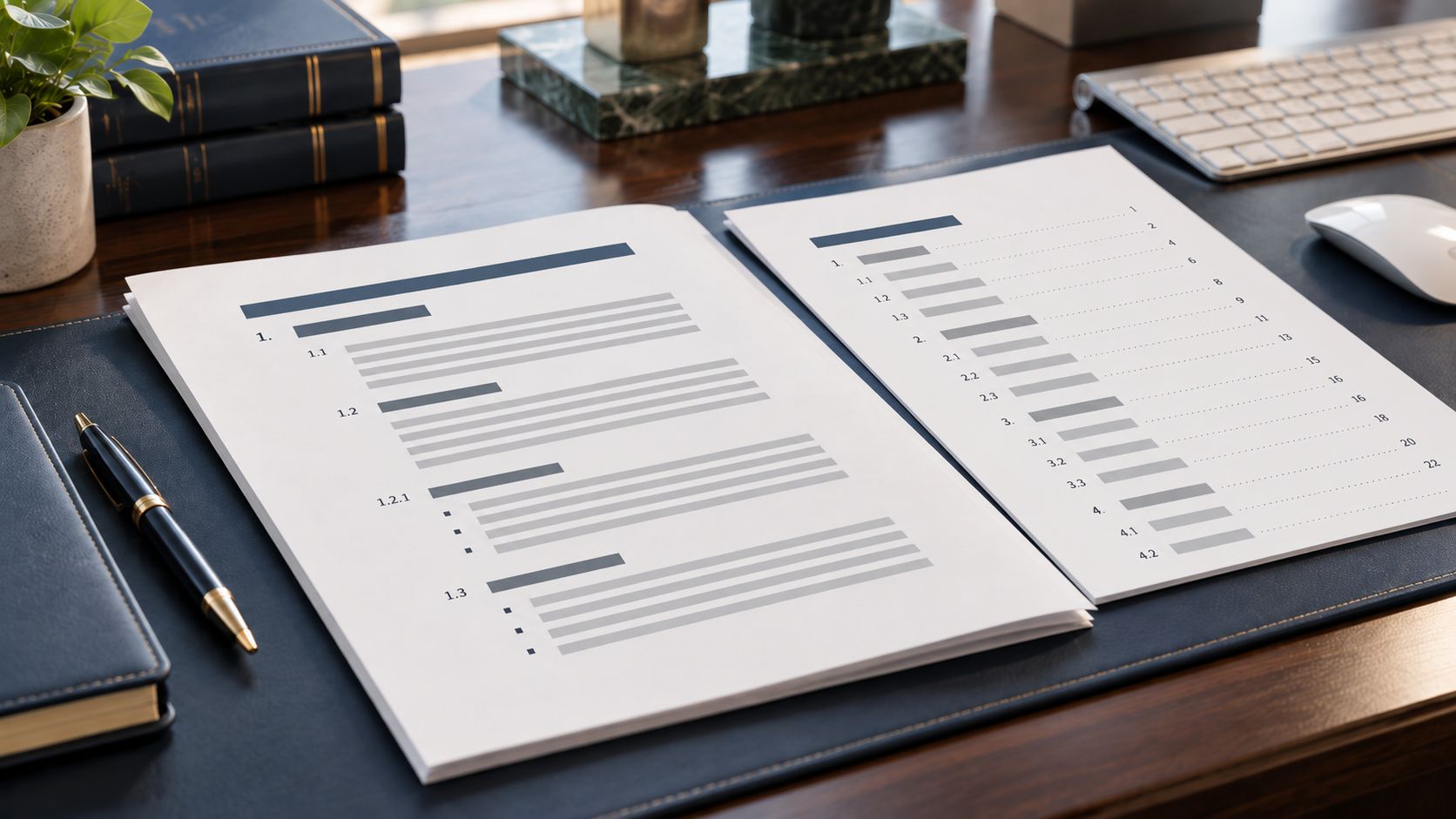
A 40-page agreement is finally taking shape when someone adds a new section near the beginning. Suddenly, the numbering farther down the document is wrong, one heading no longer appears in the table of contents and a few sections look slightly different from everything around them. Fixing each problem manually may work for the moment, but the next round of edits can bring the same issues right back.
For legal documents that are revised frequently, reused as templates or passed among multiple people, consistent formatting depends on more than choosing the right font and indentation. Microsoft Word uses Styles to create the underlying structure of a document, and that structure can then drive multilevel numbering and an automatic table of contents. When headings are set up correctly, Word can maintain numbering as sections move, keep formatting consistent throughout the document and update the table of contents as the document changes. Microsoft recommends using its built-in heading styles when creating numbered headings, while an automatic table of contents uses those headings to determine what appears in the TOC.
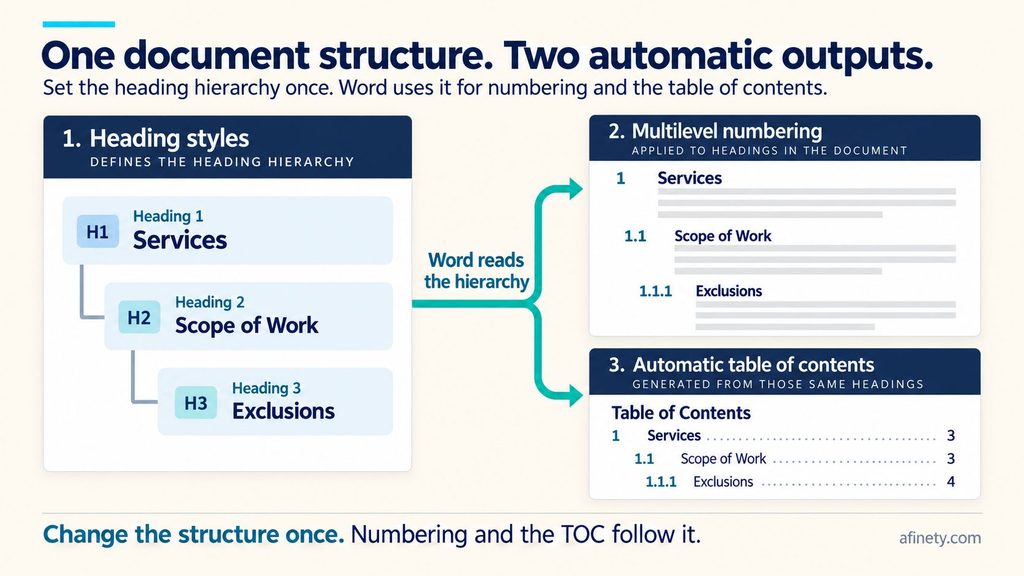
That relationship is the key to making these features work together. Styles establish the hierarchy, multilevel lists apply numbering to that hierarchy and the table of contents reads the same structure. Once that foundation is in place, editing a long brief, agreement, policy or other document becomes much less dependent on manual formatting.
The steps below focus on the desktop version of Microsoft Word for Windows. Some features and menu options differ in Word for Mac and Word for the web.
Start with Styles, not manual formatting
Styles are reusable formatting rules. Instead of selecting every section heading individually and setting the font, size, spacing, indentation and other attributes, you apply a style such as Heading 1 or Heading 2. Change the style later, and Word can update every paragraph using it.
That is particularly useful in legal documents where the same hierarchy may run for dozens of pages. Heading 1 might be used for major articles or sections, Heading 2 for subsections and Heading 3 for another level beneath that. Word’s Styles tools allow you to modify attributes such as font, size, alignment, spacing and indentation in one place rather than correcting individual headings throughout the document.

Styles can also control how text behaves across pages. For example, Keep with next can prevent a heading from being stranded at the bottom of a page while the first paragraph appears on the next one. Keep lines together can keep a paragraph from splitting across pages. Both can be incorporated into the appropriate style through Word’s line and page break settings.
One caution: If your law firm uses centrally managed templates, changing a style is not necessarily something every user should do independently. A one-off adjustment to a document and a change to a firmwide template are very different things. Before changing the underlying styles in an approved template, check with whoever owns document standards for the firm.
Connect heading styles to multilevel numbering
One of the easiest ways to create numbering problems is to treat numbers and headings as separate things. Typing “1.” before a heading or applying basic numbering may look fine initially, but it becomes much harder to manage when sections are inserted, moved or deleted.
For structured documents, use a multilevel list tied directly to your heading styles. For example, a document could use:
- Heading 1 for 1, 2, 3
- Heading 2 for 1.1, 1.2, 1.3
- Heading 3 for 1.1.1, 1.1.2, 1.1.3
From the Home tab, open Multilevel List in the Paragraph group. Word provides built-in options, or you can use Define New Multilevel List for more control. Each numbering level can be linked to a particular heading style, and settings determine the number format, indentation, alignment and when numbering restarts. Word also provides a Legal Style Numbering option.
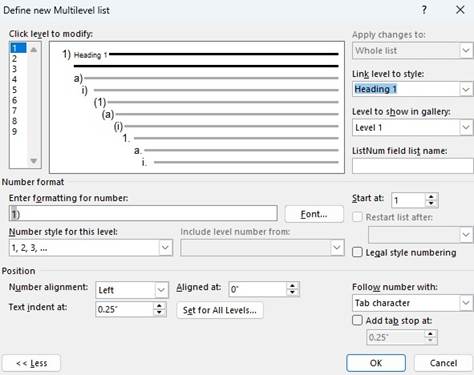
The connection between the list level and the style is what makes the system useful. If Level 1 is linked to Heading 1 and Level 2 is linked to Heading 2, adding a new Section 2 should allow the subsection beneath it to become 2.1 rather than requiring someone to renumber everything manually.
Be careful when bringing content in from other documents
Even a well-built document can get messy when content is copied from somewhere else. Legal work makes this particularly common: a clause comes from an earlier agreement, an attorney borrows language from another pleading or a section is pulled from a document created from an older template.
Pasted content can carry its own styles, paragraph settings and numbering definitions into the destination document. The result may be a heading that looks almost right but is actually using a different style, numbering that suddenly restarts or a document that contains multiple nearly identical versions of the same formatting.
When pasted content behaves strangely, check the style applied to it before manually fixing fonts, spacing and numbers. Using the destination document’s existing styles generally gives you a more stable result than repairing each visible difference individually.
There is also a point when continuing to patch a document stops making sense. A heavily reused file that has passed through many users and templates may contain enough conflicting formatting that cleaning up or rebuilding its structure is more reliable than fixing each new problem as it appears.
Build the table of contents from the same structure
Once heading styles are applied consistently, the table of contents becomes much easier to manage because Word is using information that already exists in the document.
Place the cursor where the TOC belongs, then go to References > Table of Contents and select an automatic option. Word builds the table from the headings in the document. If you need more control over how many heading levels appear or how the TOC is formatted, use the custom table of contents options rather than manually editing individual entries.
The TOC also needs to be refreshed as the document changes. Right-click it and select Update Field. If only pagination changed, updating page numbers may be sufficient. If headings were added, deleted, renamed or reordered, choose Update entire table so Word rebuilds the entries from the document structure.
If a heading is missing from the table, resist the temptation to type it directly into the TOC. First check whether the correct heading style was actually applied. Text can look like a heading because someone changed its font and size manually without Word recognizing it as part of the document hierarchy.
When Word formatting goes off track
A strange number or missing TOC entry is often the visible symptom rather than the underlying problem. If something isn’t behaving as expected, a few checks can usually narrow down the cause:
- Numbering restarts or jumps: Confirm that the headings belong to the same multilevel list and that each level is linked to the correct style.
- A heading is missing from the TOC: Check whether it has a true heading style rather than manual formatting.
- Pasted text looks different: Determine whether formatting or styles came in with the source content.
- The TOC no longer matches the document: Update the entire table rather than editing the TOC manually.
For documents subject to court or jurisdiction-specific formatting requirements, those requirements should determine spacing, margins, line numbering and other specifications before they are incorporated into a style or template.
Manage templates as a firm resource
In a law firm, the goal is not simply to create one well-formatted document. The same structure should work consistently when an attorney starts a new matter, an assistant updates an agreement or content is reused from an earlier document.
That makes template management as important as template creation. Firms that rely on standardized Word templates should maintain a clear approved version, establish who owns changes to core styles and numbering and avoid letting local copies quietly become unofficial templates. Periodic review also matters because document requirements and actual workflows can change even when the template has not.
Microsoft Word gives users plenty of ways to make a legal document look right on the screen. The bigger advantage comes from making the structure right underneath it. When styles, numbering and tables of contents use the same hierarchy, long documents are easier to revise, reuse and maintain without repairing the formatting every time someone adds Section 3.2.
For related Word guidance, see how to manage Track Changes and document comparison or create a Table of Authorities.